
Descripción
Someone on your team uploads IMG_4892.jpg. It is 4,032 pixels wide, it weighs 5 MB, and it has no alt text. They were not being careless. They were writing a blog post and the uploader accepted the file, so as far as they knew, they were done.
Six months later that image is one of eight hundred like it, and cleaning it up means a bulk rename that breaks links, an alt text audit nobody has time for, and a conversation about standards that should have happened at the point of upload.
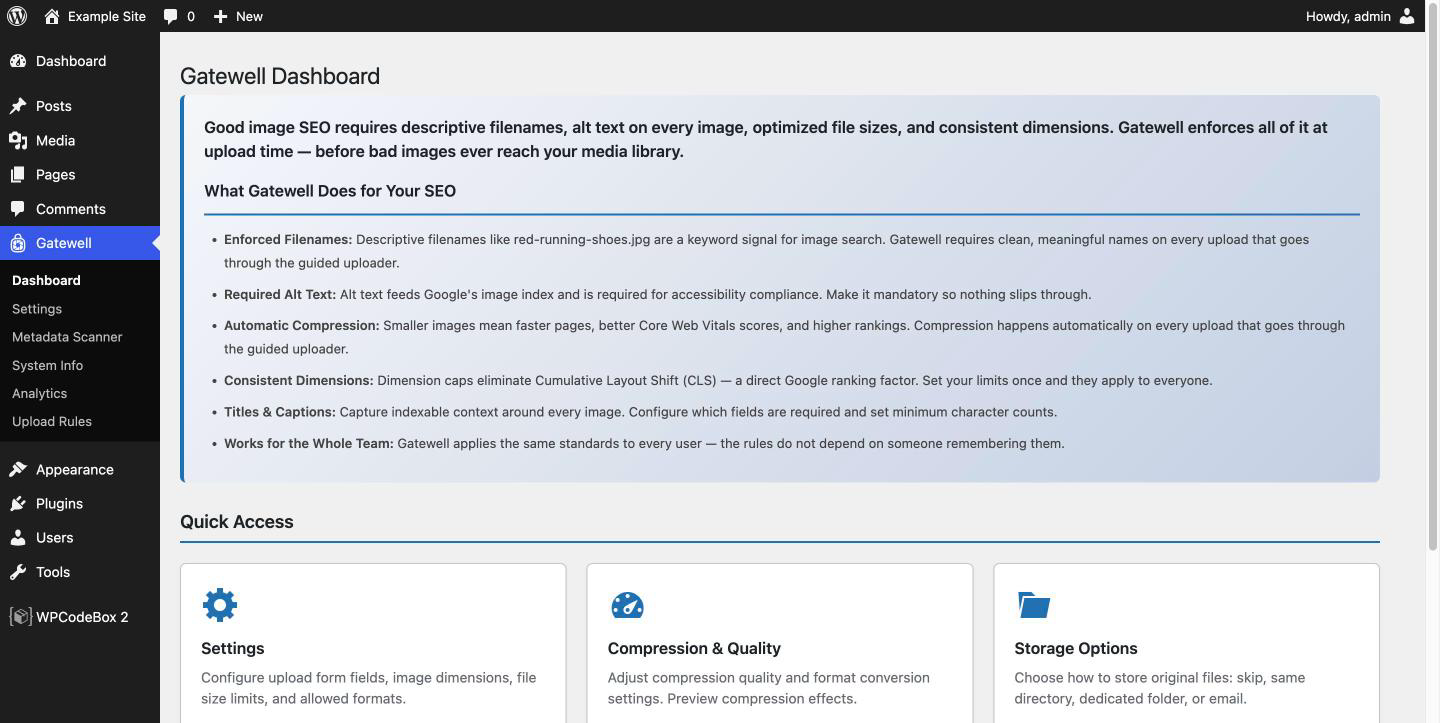
Gatewell has one job: nothing gets through the uploader until it meets your standards.
Every other image plugin works one of two ways. Either it fixes the file after it is already saved (renamers, alt text auditors, SEO reports, bulk optimizers), or it fixes the file silently in the background, so the person who uploaded it never learns anything and does the same thing again tomorrow. Both approaches accept the bad upload first and deal with it later.
Gatewell stops the file at the door and asks the person who is standing right there.
Why it matters for SEO and AI search. Alt text and descriptive filenames are the main signals Google image search, Bing and AI assistants use to understand what a picture shows. Oversized, unoptimized files slow your pages and hurt Core Web Vitals. Gatewell makes sure every image has real alt text, a meaningful filename, and a sensible file size and format (including WebP and AVIF where your server supports them) before it ever reaches your media library.
How it works
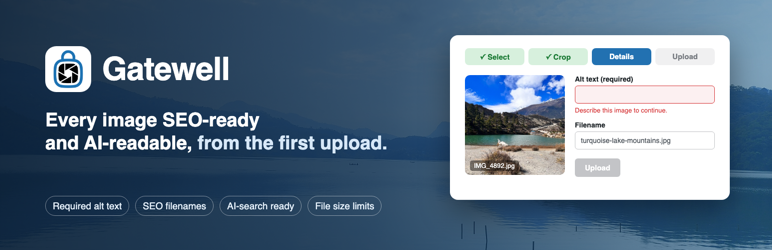
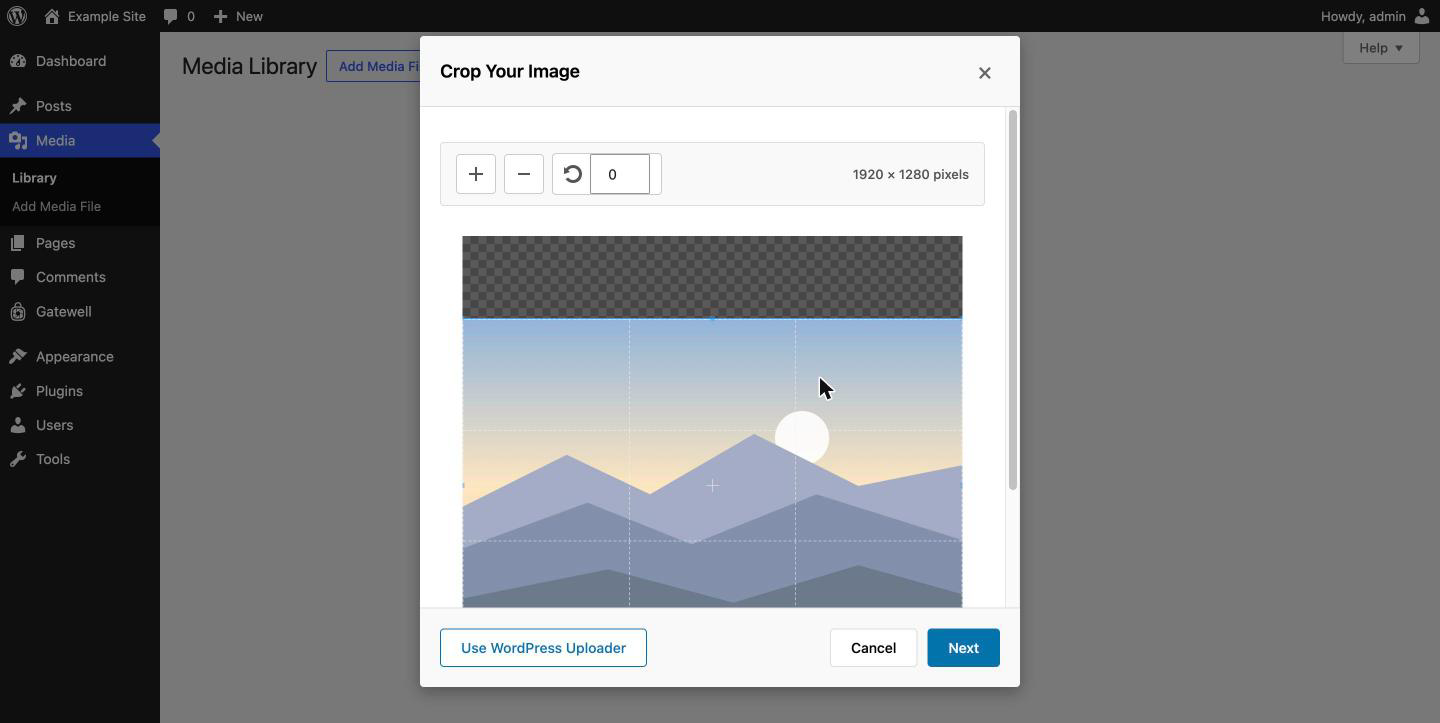
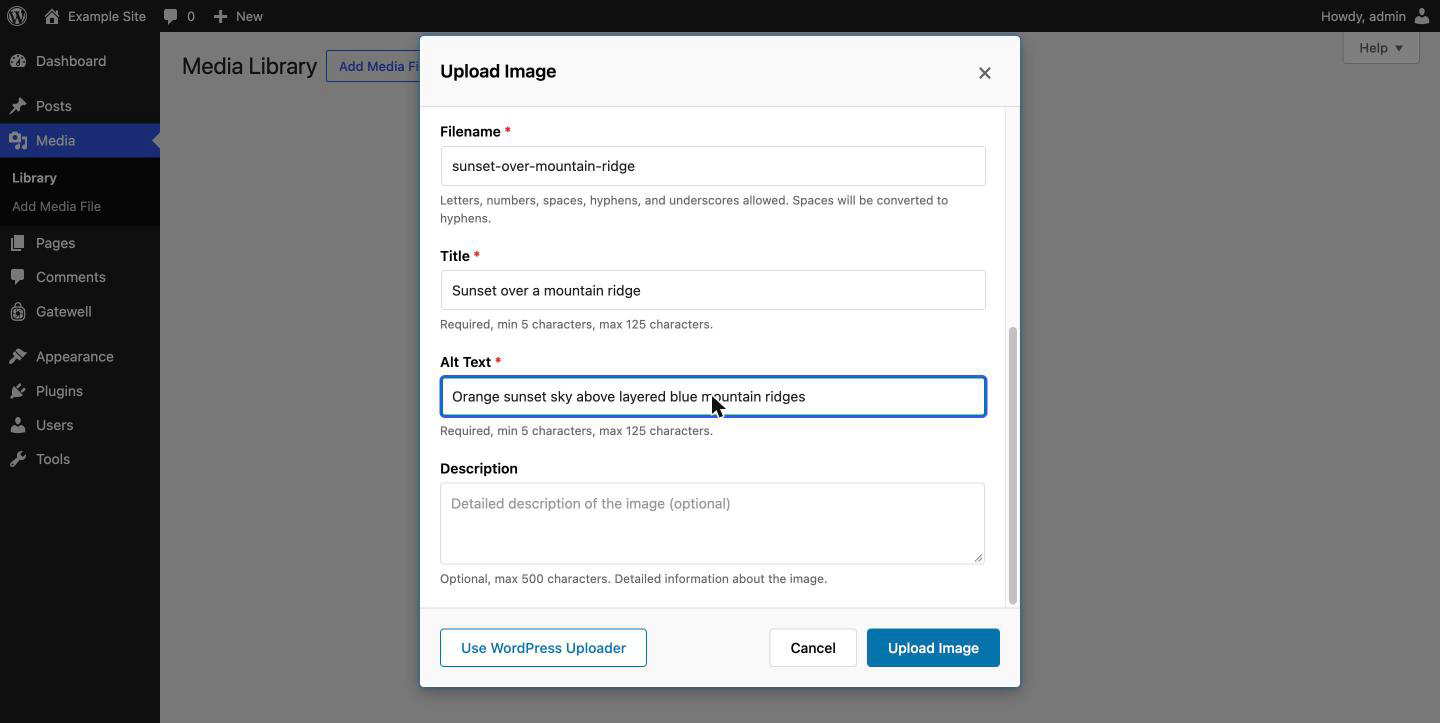
Gatewell replaces the WordPress media modal with a guided modal. When someone opens it — the Media Library “Add New” button, “Add Media” in the classic editor, “Set featured image” in either editor, or “Media Library” on a block placeholder — they get this instead:
- Select the file.
- Crop it, with optional aspect ratio locking.
- Name it. A descriptive filename is required.
IMG_4892will not pass. - Describe it. Alt text is required by default, with a minimum character count, and a similarity check that refuses alt text copy-pasted from the title or description.
- Upload. The file is compressed, resized to your caps, converted if you have asked for that, and only then written to disk.
Select multiple files and they go through a queue, one at a time, each with its own filename and alt text. There is no “apply to all” shortcut, because that is how you get eight hundred images described as “product photo”.
The escape hatch
Overriding a core WordPress screen is a big thing to do to someone’s site, so there is always a way out.
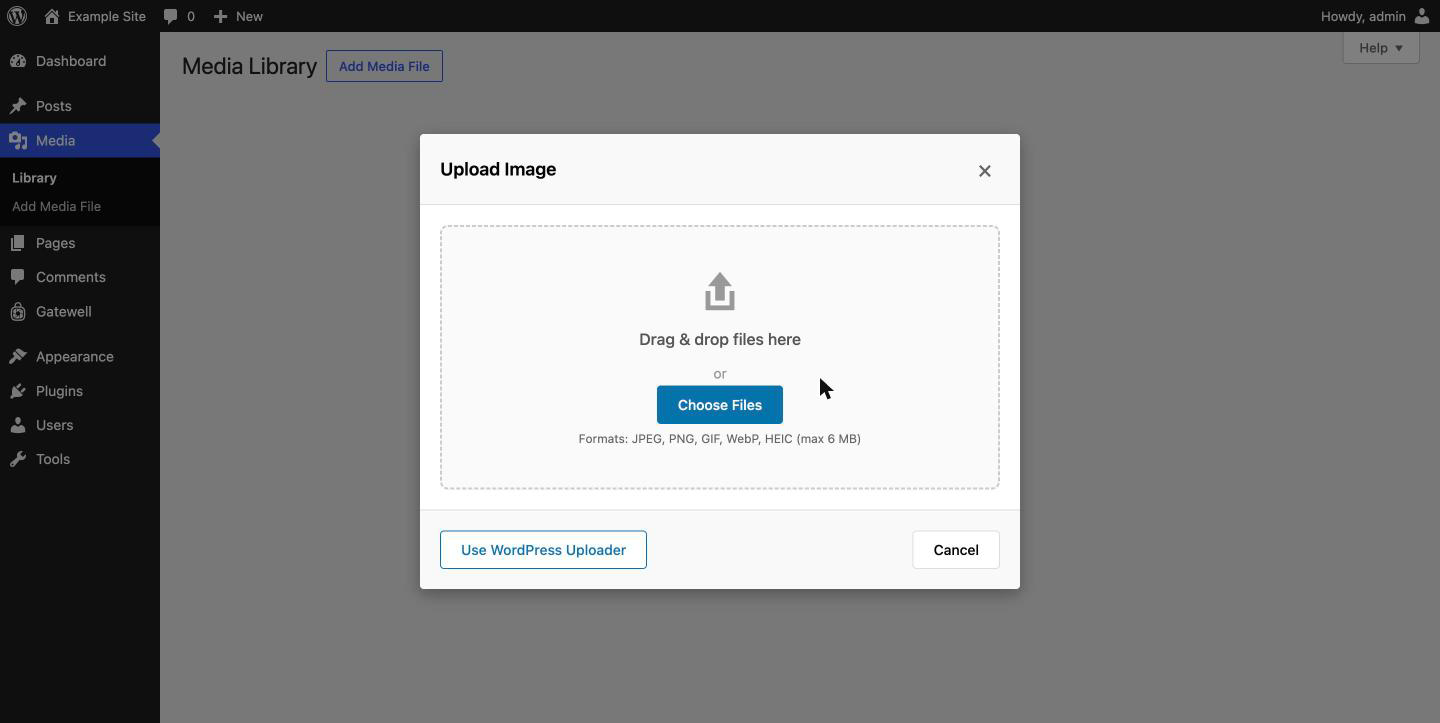
Every Gatewell modal has a “Use WordPress Uploader” button. One click drops the user into the stock WordPress media uploader for that upload, with no restrictions applied. Nothing is trapped, nothing is unrecoverable, and no one is ever stuck.
Site owners who want the gate to be absolute can hide that button in Settings. It is visible by default. Deactivating the plugin restores the stock uploader everywhere, immediately.
What it enforces
- Required descriptive filenames. Validated characters, length limits, and optional per file type naming patterns.
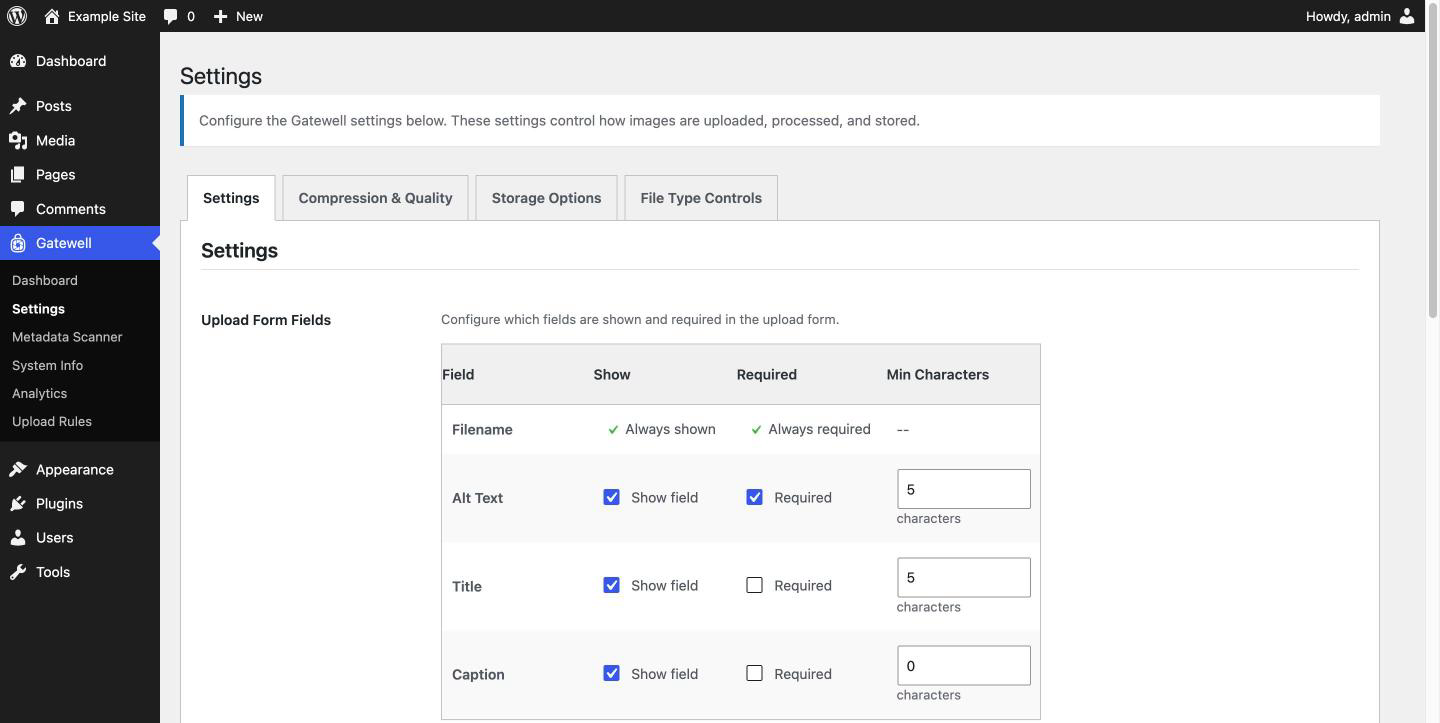
- Required alt text, with a configurable minimum character count. Title and caption can also be shown and made required, each with their own minimum.
- Duplicate metadata detection. Alt text, title and description are compared against each other, and the upload is blocked if any pair is too similar. The threshold defaults to 75% and is configurable.
- Dimension caps and floors. Maximum and minimum width and height, all configurable. Defaults are 1920×1920 max and 300×300 min.
- File size limits, per file type category. Default is 6 MB for images.
- Server-side compression at a quality you set. Default is 85.
- Format control. JPEG, PNG, GIF and WebP on by default; AVIF and SVG available and off by default. Optional output conversion: preserve the original format, or convert everything to JPEG, WebP or AVIF, or use Smart Conversion, which picks per image based on whether it has transparency. WebP and AVIF need an encoder on your server; the setting says so next to the option when yours cannot, and Gatewell > System Info lists what your server supports.
- HEIC and HEIF conversion to JPEG, so photos straight off an iPhone stop being a support ticket. This one needs the ImageMagick PHP extension with HEIC support; the System Info screen tells you whether your server has it.
- SVG sanitization. Off by default. When enabled, every SVG is parsed against an element and attribute allowlist, with scripts, event handlers and unsafe URL schemes stripped, and the parser hardened against XXE and entity expansion attacks.
- MIME allow and block lists, so you can be stricter than WordPress is.
- Original file retention. Keep an untouched copy of every upload, either beside the compressed file in the same folder, or in a dedicated
gatewell-originals/folder that the plugin protects with a.htaccessdeny rule and anindex.phpstub so the originals are not part of the media library and are not reachable from the web.
Beyond the upload gate
- Advanced Upload Rules. Different requirements per post type, per upload context and per user role, working the moment you activate the plugin. Products can demand a locked square crop while blog posts stay looser, and contributors can face a higher alt text minimum than editors do.
- Analytics. Upload volume, rejection reasons, metadata quality scores by upload context, and quality averages per user, so you can see which contributor needs a five minute conversation.
- Metadata Scanner. Finds images already in your library that are missing alt text, captions or descriptions, and lets you fix them inline without leaving the page. Gatewell guards the door; the scanner deals with what got in before you installed it.
- System Info. PHP version, memory limits, GD and ImageMagick capabilities, and which formats your server can actually encode, so a failed upload has an explanation.
- Coexistence with optimizers. Gatewell detects Smush, EWWW, Imagify, ShortPixel, Optimole, TinyPNG and Jetpack, and by default steps back from compression and format conversion when one of them is already handling it. The gate stays; the duplicated work does not. If ImageAudit is installed, Gatewell also defers image size generation to it and links across. Both integrations are optional and do nothing when those plugins are absent.
Who this is for
Agencies and marketing teams where more than one person uploads images and not everyone has read the style guide. If you are the only author on your site, you probably do not need a gate. If you have six contributors and a client who notices, you do.
Everything runs on your server
There is no API key, no account, no per-image cost and no usage quota. Cropping, compression, format conversion, HEIC decoding and SVG sanitization all happen in PHP on your own hosting. Your images never leave your server. See the External Services section below.
About the paid version
A separate paid build exists. It adds things that depend on outside services or heavy client libraries: AI-generated alt text, cloud archiving of originals, previews for PDF, audio and video files, agency white-labelling, and a few additional rule types.
None of that code is in this plugin. It is not disabled, gated or locked behind a license check. It is physically removed at build time and is not in this ZIP. Everything described above this paragraph works with no paid version and no license key.
Questions, problems or ideas? Post in the support forum. Every thread gets a reply.
External Services
This plugin does not connect to any external service.
All image processing happens on your own server using PHP’s GD and ImageMagick extensions. Cropping, compression, resizing, format conversion, HEIC decoding and SVG sanitization are local operations. Every AJAX request the plugin makes goes to your own site’s wp-admin/admin-ajax.php. No file, filename, alt text, URL, site address, user information or usage statistic is transmitted anywhere.
There is no API key to enter, no account to create, no cloud conversion fee, no per-image credit, no monthly quota and no third-party watermark. The plugin works identically with the server offline from the public internet.
Cropper.js and Chart.js are bundled with the plugin and loaded from your own server. They are not fetched from a CDN.
Credits
- Cropper.js v2.2.0, https://fengyuanchen.github.io/cropperjs/ , MIT licensed, bundled locally and used for the crop step.
- Chart.js v4.5.1, https://www.chartjs.org/ , MIT licensed, bundled locally and used for the Analytics screen.
- Image processing uses the GD and ImageMagick extensions provided by your server.
Capturas
Instalación
- Upload the plugin folder to
/wp-content/plugins/gatewell/, or install it from the Plugins screen in WordPress. - Activate it.
- Go to Gatewell > Settings and set your dimension caps, compression quality, allowed formats and required fields. The defaults are sensible if you would rather not.
- Upload an image anywhere in WordPress. The Gatewell modal appears in place of the standard uploader.
Requires PHP 7.4 or later.
Two PHP extensions are optional. Neither is needed to install, activate or use the plugin.
- GD — used for cropping, resizing, compressing and converting images during upload. It ships with virtually every host. Without it the plugin activates normally and every alt text, title, filename, format and dimension rule is still enforced; only the image-transform steps are skipped, and an admin notice says so.
- ImageMagick — used for formats GD cannot read, notably HEIC and HEIF.
Gatewell > System Info reports what your server actually supports.
To remove Gatewell, deactivate it. The stock WordPress uploader comes back at once and every image you already uploaded stays exactly where it is.
Preguntas frecuentes
-
How do I report a problem or request a feature?
-
Post in the support forum. For a problem, include your WordPress and PHP versions (both are on Gatewell > System Info) and what you were uploading. For a feature request, describe what you were trying to do rather than the feature you imagine; it helps prioritize.
-
Can I change the maximum image dimensions?
-
Yes. Maximum width, maximum height, minimum width, minimum height and maximum file size are all editable under Gatewell > Settings > File Type Controls. The 1920×1920 maximum and 6 MB limit are defaults, not hard limits.
-
What if someone needs to upload a file that breaks the rules?
-
Every Gatewell modal has a “Use WordPress Uploader” button that hands the user the stock WordPress uploader for that upload. It is shown by default. If you want the rules to be unconditional, turn off WordPress Uploader Button on the main Gatewell > Settings tab.
-
Which screens use the guided uploader?
-
Gatewell takes over the WordPress media modal, so the guided modal appears wherever that modal opens:
- The Media Library screen, and Media > Add New.
- “Add Media” in the classic editor.
- “Set featured image”, in both the classic editor and the block editor.
- The “Media Library” button on a block’s media placeholder.
- Files dragged onto the WordPress media modal itself.
Some upload routes never open the media modal, and on those WordPress’s own uploader runs unchanged, with no filename or alt text requirement and no compression:
- The “Upload” button on a block’s media placeholder, which opens your computer’s file picker directly.
- Dragging a file onto the block editor canvas, or pasting an image into a post.
- The Site Editor, the Customizer, and image fields added by other plugins or themes.
- Programmatic uploads, including the REST API, XML-RPC and WP-CLI.
If you want every image to go through the gate, ask your team to use “Set featured image” and “Media Library” rather than the placeholder’s “Upload” button.
-
Does it intercept featured images as well as content images?
-
Yes, both — featured images in either editor, and content images added through the media modal. See “Which screens use the guided uploader?” above for the routes that are not covered.
-
Can I hide the Rules screen?
-
Yes. Add
define( 'GATEWELL_ENABLE_RULES', false );towp-config.phpand the Rules screen and its per-context matching are switched off. Most sites will not want to. -
Can I apply the same alt text to a batch of files?
-
No, and that is deliberate. Batch upload queues the files and walks through them one at a time so each gets its own filename and alt text. A copy-paste-to-all button would produce exactly the metadata this plugin exists to prevent.
-
Why was my HEIC photo converted to JPEG?
-
Because browsers cannot display HEIC reliably, so Gatewell decodes it server-side and stores a JPEG. This requires the ImageMagick PHP extension with HEIC support compiled in. If your server does not have it, the upload is refused with an explanation instead of failing silently, and Gatewell > System Info will show you exactly which formats your server can handle.
-
Is SVG support safe?
-
SVG is off by default. If you enable it, every uploaded SVG is parsed and rebuilt against an allowlist of elements and attributes. Scripts, event handlers, external references and unsafe URL schemes are removed, and the XML parser is configured against XXE and entity expansion attacks. SVGs skip the cropping step, since there is nothing to crop.
-
Does it work on phones and tablets?
-
Yes. The modal is responsive and the cropper handles touch.
-
Does it slow down uploads?
-
Compression and resizing take server time, but that work would otherwise be done by WordPress or by an optimization plugin after the fact. The upload shows a progress bar while it runs.
-
Will it rename images that are already in my library?
-
No. Gatewell only acts on new uploads. Existing files are never touched or renamed. For images already in the library that are missing metadata, use the Metadata Scanner, which edits alt text, caption and description in place without changing filenames.
Reseñas
No hay reseñas para este plugin.
Colaboradores y desarrolladores
Este software es de código abierto. Las siguientes personas han contribuido a este plugin.
Colaboradores
Traduce “Gatewell — Image SEO: Required Alt Text & Upload Rules” a tu idioma.
¿Interesado en el desarrollo?
Revisa el código, echa un vistazo al repositorio SVN o suscríbete al registro de desarrollo por RSS.
Registro de cambios
1.7.0
- Activating Gatewell now takes you straight to the Gatewell dashboard, once.
- New “Menu location” setting: keep Gatewell as a top-level menu or move every Gatewell screen under Tools.
- A one-time, dismissible admin notice on Gatewell screens (administrators only) asks for a review after 10 accepted uploads and 7 days. It can be dismissed per user and nothing is sent anywhere.
- Added a Support link on the Plugins screen.
- System Info now shows whether AVIF is supported by your server.
- Readme: updated title, description and screenshots.
1.6.4
- Fixed a WordPress 6.7+ “translation loaded too early” notice: the custom monthly cron schedule label is no longer passed through
__()while schedules are registered onplugins_loaded.
1.6.3
- Activation no longer aborts with
wp_die()when the GD PHP extension is missing. GD was never required for most of what the plugin does — alt text, title, filename, format and dimension enforcement are all independent of it — so blocking activation on it was wrong. The plugin now activates cleanly on any supported server. - A dismissible-free admin warning explains the consequence instead: with GD absent, images cannot be cropped, resized, compressed or converted during upload. The check runs on each admin screen rather than at activation, so the notice clears itself as soon as the host enables the extension.
- Both optional PHP extensions, GD and ImageMagick, are now documented in the plugin header and in the installation instructions.
1.6.2
- Updated the bundled Cropper.js library from 1.6.3 to 2.2.0, the current stable release. Version 2 is a rewrite built on custom elements, so the plugin’s crop interface was migrated to the new API: the cropper is now composed from
<cropper-canvas>,<cropper-image>and<cropper-selection>elements, the crop is read from the selection and exported with the asynchronous$toCanvas(), and zoom and rotation go through$zoom()and$rotate(). - The separate
cropper.min.cssstylesheet is no longer bundled or enqueued. Cropper.js 2 carries its own styles inside shadow DOM, so the file no longer exists upstream. - Crop behaviour is unchanged for the user: locked aspect ratios from upload rules, the initial crop covering the whole image, the 200px minimum crop size, keeping the crop inside the image, wheel zoom, image panning, absolute rotation from -180 to 180 degrees and the live pixel-dimension readout all work as before.
1.6.1
- Removed the “Tested up to” header from the main plugin file. It is declared in readme.txt only, which is the supported location.
- Removed the deprecated
libxml_disable_entity_loader()calls from the SVG sanitizer. They were redundant: both parsing paths already reject any document carrying a DOCTYPE before it reaches the parser, so no entity can be declared, and the parser is still called withLIBXML_NONETand withoutLIBXML_NOENT. - The optional mbstring and GD WebP functions are no longer called without checking that they exist.
mb_strtolower()andmb_strlen()now go through helpers that fall back to their single-byte equivalents, andimagecreatefromwebp()is guarded the same way its sibling calls already were.
1.6.0
- Renamed the plugin from ImageLock to Gatewell. Settings, stored originals, analytics history and upload rules all carry over automatically on upgrade; no reconfiguration is needed.
- All local features are now free with no gating of any kind. The upload modal, cropping, required filenames and alt text, compression, dimension and size limits, format conversion, HEIC conversion, SVG sanitization, File Type Controls, Advanced Upload Rules, Analytics and the Metadata Scanner are fully functional with no license check anywhere in the code.
- Every output conversion mode — Preserve, JPEG, WebP, AVIF and Smart — is selectable in Settings. Where the server cannot encode WebP or AVIF the option says so and the setting falls back to Preserve.
- The protected dedicated-folder option for original files is selectable in Settings. Originals are written to
gatewell-originals/behind a.htaccessdeny rule and anindex.phpstub, and are given unique filenames so two uploads sharing a base name cannot overwrite each other. - Scheduled analytics aggregation and pruning events are now cleared on deactivation and on uninstall, and monthly aggregation runs on a registered 30-day schedule instead of a recurrence WordPress does not define.
- Removed the exiftool shell-out fallback from metadata preservation. The plugin no longer starts an external process of any kind.
- Paid-only features are no longer shipped in a disabled state. Code for AI alt text, cloud storage of originals, enhanced media previews and agency white-labelling is removed from this distribution at build time rather than gated at runtime.
- Security hardening of SVG handling: the sanitizer now works against an explicit element and attribute allowlist rather than a blocklist, matches element names case-insensitively so camelCase SVG elements survive, blocks unsafe URL schemes in every attribute, and configures the XML parser against XXE and entity expansion attacks. Files are read through the WordPress filesystem API.
- Advanced Upload Rules is enabled by default instead of sitting behind a
wp-config.phpconstant. The constant now only exists to switch the feature off. - Updated bundled libraries to Cropper.js 1.6.3 and Chart.js 4.5.1.
- Plugin attribution no longer appears in the media upload modal. It is limited to Gatewell’s own admin screens and is filterable via
gatewell_show_branding. - Documented exactly which screens use the guided uploader. Earlier releases described interception as covering Gutenberg blocks generally. It does not: the “Media Library” button on a block placeholder opens the WordPress media modal and is intercepted, but the placeholder’s “Upload” button, dragging a file onto the block editor canvas and pasting an image all bypass the modal and reach WordPress’s own uploader. The FAQ now lists both sets of routes.
- FIX: The “Use WordPress Uploader” button could not be hidden.
toggleWpUploaderButton()read a cached element under a different spelling than the one it was stored as, so the lookup was always undefined and turning off WordPress Uploader Button in Settings had no effect.
1.5.3
- Initial WordPress.org release
- Advanced Upload Rules is now a free, fully-functional feature (set different image requirements per post type, upload context, and user role)
- Usage analytics dashboard included for free
- Refined free/premium boundary: all local image-management features are free; premium adds cloud archival and AI-assisted alt text
1.5.0
- NEW: Queue-based batch upload system – select multiple files at once
- FEATURE: Process multiple files sequentially with individual metadata entry
- FEATURE: Visual queue progress bar with “X of Y files” counter
- FEATURE: Skip problematic files and continue queue (“Skip This Image” button)
- FEATURE: Cancel All with custom confirmation dialog
- FEATURE: Queue completion summary showing uploaded/skipped/failed counts
- FEATURE: Pre-validation of all files before queue starts
- FEATURE: Drag-and-drop support for multiple files
- ENHANCEMENT: Auto-advance to next file after successful upload
- ENHANCEMENT: Errors no longer stop the queue
- ENHANCEMENT: Single file uses the normal flow with no queue UI
- ENHANCEMENT: Dynamic upload button text (“Upload & Continue” / “Upload & Finish”)
- UX: Error messages positioned between preview and form fields
- UX: Red asterisk for required fields
- FIX: Upload button no longer visible during the crop stage
- FIX: Alt text validation skipped for file types where it does not apply
- FIX: Title field validation only runs if the field exists
1.1.1
- Enhanced Gutenberg Upload button interception at capture phase
- Compression preview now reflects the selected Output Format Conversion mode
- Added output format label (JPEG/WebP/PNG) to compression preview info
1.1.0
- Added SVG support with automatic sanitization (disabled by default for security)
- SVG files skip cropper stage and go straight to naming/preview
- New System Info screen showing server diagnostics
- Enhanced server capability checking for all image formats
- Display PHP environment, memory limits, upload limits, and format support
- Automatic detection of missing libraries and configuration issues
- Dynamic format list in upload modal based on enabled formats
- Improved format validation and MIME type handling
- NEW: Dynamic field requirement indicators – required fields show a red asterisk
- NEW: Field placeholders and help text update based on admin settings
- NEW: Enhanced validation for caption and title fields with minimum character requirements
- Improved accessibility with proper HTML5 required and aria-required attributes
1.0.0
- Initial release
- Intercepts WordPress image uploads with a custom modal
- Image cropping with Cropper.js (bundled locally)
- Filename validation and enforcement
- Server-side compression and optimization
- HEIC/HEIF support with auto-conversion to JPEG
- Security validation and nonce verification
- Escape hatch to use the WordPress default uploader
- Works across all post types
- Mobile-responsive interface
- WordPress Coding Standards compliant
- Full internationalization support